
You can add a Table of Contents (TOC) to a WordPress website in multiple ways. Below is a complete list of ALL practical methods, from easiest to advanced, with steps, pros & cons, and SEO impact
Method 1: TOC Using Plugin (Easiest & Most Popular)
Best Plugins
-
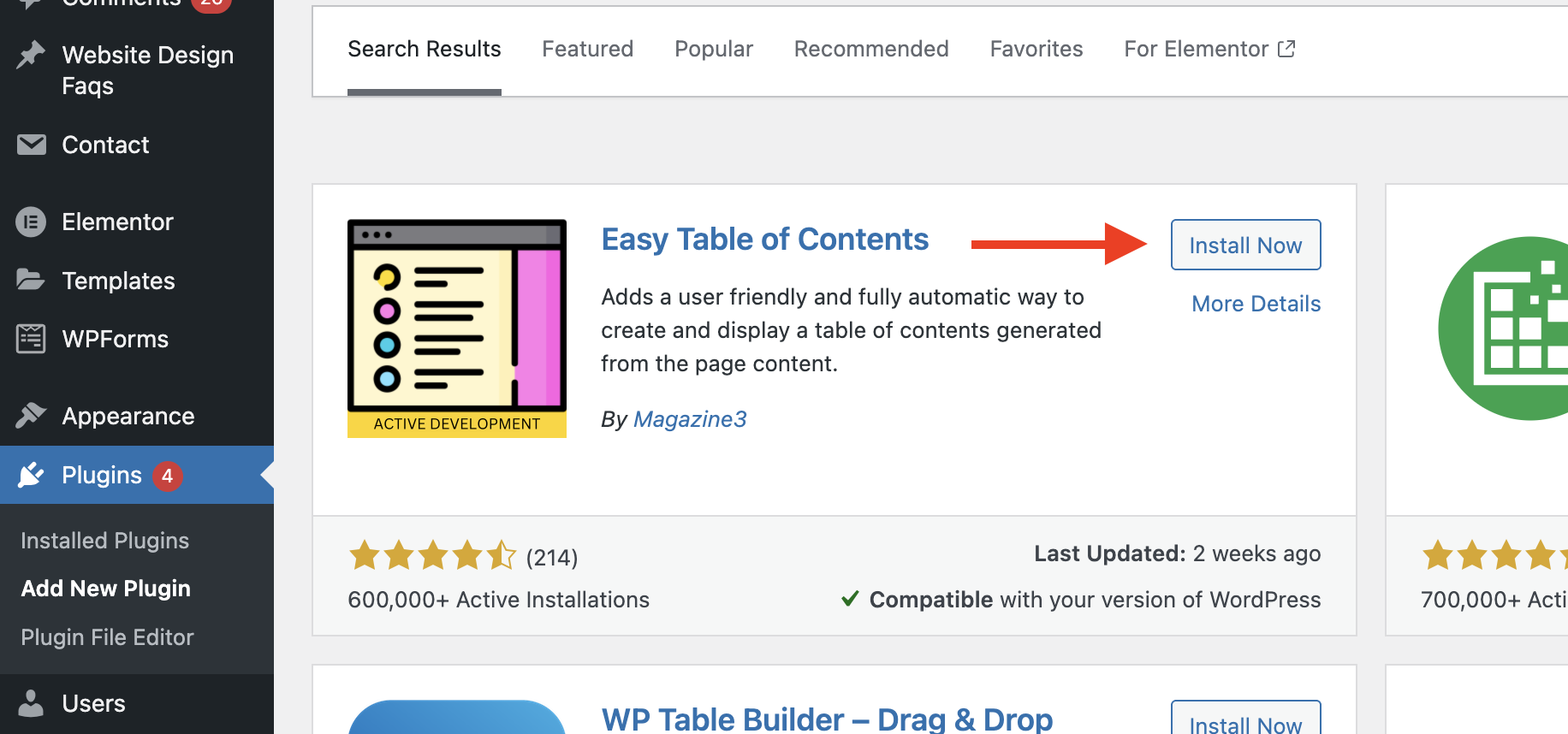
Easy Table of Contents
-
LuckyWP Table of Contents
-
Rank Math TOC Block
-
Yoast SEO TOC Block
-
TOC Plus
Steps (Example: Easy Table of Contents)
-
Go to Dashboard → Plugins → Add New
-
Search Easy Table of Contents
-
Install & Activate
-
Go to Settings → Table of Contents
-
Choose:
-
Auto insert (posts/pages)
-
Heading levels (H2–H6)
-
Position (top, after first heading)
-
- Automatically generates TOC from headings
- Best for long SEO articles
SEO Benefit
-
Improves UX
-
Helps Google sitelinks
-
Reduces bounce rate
Method 2: Gutenberg Block (No Plugin)
Using Rank Math / Yoast Block
-
Edit page/post
-
Click + Add Block
-
Search Table of Contents
-
Insert block
-
Auto-fetches headings
- Lightweight
- No extra plugin needed (if Rank Math/Yoast is installed)
Method 3: Manual TOC (HTML Anchors – No Plugin)
Step 1: Add IDs to Headings
Step 2: Create TOC Links
- Full control
- Time-consuming
- Best for landing pages
Method 4: CSS Sticky TOC (Advanced UX)
Make TOC Sticky
- Better navigation
- Used in blogs & documentation sites
Method 5: JavaScript Auto TOC (No Plugin)
JS Script Example
- Dynamic TOC
- Needs developer knowledge
Method 6: TOC in Elementor
-
Edit page with Elementor
-
Drag Table of Contents Widget
-
Choose:
-
Headings
-
Style
-
Position
-
- Best for Elementor users
- Visual control

Method 7: TOC in Classic Editor
-
Switch to Text view
-
Use manual anchor links (Method 3)
Method 8: TOC Using Shortcode
Many plugins provide shortcodes:
- Place TOC anywhere
- Useful for long-form pages
Method 9: TOC via Theme Feature
Some themes (Astra, GeneratePress Pro) have built-in TOC
- No plugin
- Limited customization
Best Method Based on Use Case
| Use Case | Best Method |
|---|---|
| SEO Blogs | Easy TOC Plugin |
| Lightweight Site | Rank Math Block |
| Landing Page | Manual HTML |
| Elementor Site | Elementor Widget |
| Custom Website | JS + CSS |